Diagnostic Module Operation and Troubleshooting
Operation
Once you have programmed the Diagnostic Module and the Diagnostic Module is running, no other operations are required. Monitor the four status LEDs for routine maintenance.
| Status LEDs and Information | |
|---|---|
| System Status | Will blink ON every 2 seconds indicating normal operation and program is running |
| Over Pressure Alarm | ON with Over-Pressure alarm |
| Over Temperature Alarm | ON with Over-Temperature alarm |
| System Problem | ON with a System Problem such as a Thermocouple or Pressure Sensor failure |
The “System Status” Green LED will blink every 2 seconds indicating that the Diagnostic Module is powered up and operating normally. If this LED is not illuminated or is not blinking, check the following:
- Make sure that the power supply is between 10 vdc and 30 vdc.
- Make sure that the fuse is not blown.
- Make sure that the power supply is connected correctly (for example: wires are not crossed at/from the source).
- If the power supply is a switched source, make sure that the key is turned on. A switched source means that power is supplied only when the vehicle ignition key is turned ON.
- If the vehicle is equipped with a Master battery disconnect switch, make sure that the switch is ON.
- If the Diagnostic Module is receiving the proper uninterrupted power supply, the Diagnostic Module may be malfunctioning.
If the Red LED for “Over-Press”, “Over-Temp” or “System Problem” is on, please refer to the “”Troubleshooting Diagnostic Module Alarms” ” that follows.
Troubleshooting Diagnostic Module Alarms
Indications of a Diagnostic Module-related alarm:
- Check/Stop Engine light or engine derate.
- Yellow or Red LED illuminated on the Remote Display.
- One or more of the three Red LEDs on the front of the Diagnostic Module illuminated.
When one of the above occurs:
- Connect the Diagnostic Module interface cable from a laptop computer to the front of the Diagnostic Module.
- Start the Diagnostic Module Communications Software.
- From the Communications menu choose “Connect”.
- Click on the “Get Status” button.
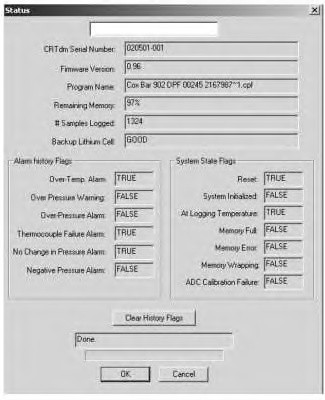
The “Status” dialog box will open. Refer to Illustration 56. In the lower left portion (Alarm History Flags) of the dialog box there is a list of the alarm flags. If the box next to a given alarm reads “True”, that alarm was activated. The lower right side shows “System State Flags”. If “ADC Calibration Error” or “Memory Error” flags are “True”, contact your distributor for a replacement Diagnostic Module.
Table 6 shows possible causes of alarms and possible solutions.
| Alarm Diagnosis Chart | ||
|---|---|---|
| “True” Alarm | Possible Cause | Possible Solution |
| Over Temperature Alarm | Damaged Thermocouple (If accompanied by an Open Thermocouple Alarm) | Remove the thermocouple from the DPF for inspection. If the thermocouple is broken, the thermocouple must be replaced. If the thermocouple probe is not broken, inspect the thermocouple wire back to the Diagnostic Module. Make sure that the insulation is not melted by touching an exhaust pipe. Ensure that the thermocouple is plugged in at the Diagnostic Module. |
| Unplugged Thermocouple | ||
| Engine Upset Condition | Plot the Max temperature data and note how often the exhaust temperature exceeded the alarm threshold. Check the Alarm Threshold by downloading the program from the Diagnostic Module and noting the temperature at which the alarm is enabled. If the graph has a noticeable spike where the alarm threshold was exceeded only once, there may have been an engine upset condition that needs investigated. |
|
| Engine Upset Condition (If Over-Temp Alarm is accompanied by Over Pressure Warning or Over Pressure Alarm) | The filter has experienced an uncontrolled regeneration. Remove the filter and inspect the outlet face of the filter. If more than 20 cells show soot on the outlet (clean) side of the filter, then the filter needs replaced. Check Engine Operation before installing a new filter. The Engine Upset Condition alarm is a sign that the engine is producing too much soot. Ensure that all fuel-related components are operating per the manufacturer specifications. |
|
| Incorrect Alarm Setting | If the graph shows that the Max. Temperature was consistently exceeding the alarm threshold, the alarm threshold may be set too low for your application. Note the highest temperatures that exceeded the alarm setting and consult your Caterpillar Dealer Technical Communicator to get a new setting. | |
| Over Pressure Warning | Ash Accumulation | Graph the max pressure data and look at the peaks of the graph. If the back pressure gradually increased over a period of weeks or months then the filter needs to be cleaned of ash. Consult your filter cleaning procedure for instructions on cleaning ash. Note: If this alarm occurs more than twice during a two (2) month period, there may be something wrong with the engine. The engine upset making too much soot or high oil consumption creating excessive ash. The exhaust temperature may be to cold for complete DPF regeneration. |
| Over Pressure Alarm | Soot or Ash Accumulation | The Over Pressure Alarm is a high-level alarm. Download and graph the Max Pressure data. If the back pressure increased gradually over an extended period (weeks or months), ash has accumulated in the filter and requires cleaning immediately. If the back pressure increased rapidly (hours or days), the filter is plugging with soot and requires cleaning immediately. In this case the engine must be diagnosed for potential component failure before the filter is reinstalled (for example: turbo failure/oil leak, injector leaks, or failure, fuel pump failure, injection timing, and so forth). A filter plugging with soot can also be caused by improper duty cycle such as excessive idle time or light engine loading. |
| Shorted Thermocouple Alarm | Temperature Does Not Change or Changes Very Little Incorrect Alarm Settings |
Thermocouple wiring is broken or shorted or the thermocouple tip has broken off. Replace the thermocouple. Verify that Alarm settings are compliant with Table 4 |
| Open Thermocouple Alarm | Temperature Reads Over 1000C | The thermocouple probe has broken. Replace the thermocouple. |
| No Change In Pressure Alarm | The Back Pressure Is Not Changing Enough During Normal Operation | Check the Copper tubing for holes or leaks from the DPF back to the Diagnostic Module. Check to make sure the fitting at the DPF and the Diagnostic Module are tight and that the copper tubing has not broken. Clean out any blockages or water in the tubing that connects the Diagnostic Module to the DPF. Check all exhaust pipes for leaks. |
| The No Change In Pressure Alarm Settings Need Adjustment | Adjust settings for the NO Change in Pressure Alarm if the tubing is not broken or blocked and the fittings are tight. | |
| Negative Pressure Alarm | Excessive Negative Pressure readings | The pressure sensor may need recalibrated. Adjust settings for the alarm. Water may be condensing in the tubing. Clear the tubing. If the problem persists, reroute tubing so condensation does not accumulate in tubing or in Diagnostic Monitor pressure transducer inlet. |
Troubleshooting Diagnostic Module Communications Problems
If you encounter a problem connecting to the Diagnostic Module or communicating with the Diagnostic Module, refer to Table 7 for possible causes and solutions.
| Communications Troubleshooting | ||
|---|---|---|
| Problem | Possible Cause | Possible Solution |
| Cannot Connect To Diagnostic Module | Cable not connected properly to Diagnostic Module or PC | Check cable connection at PC and Diagnostic Module |
| Diagnostic Module not powered up | Check to see if the “System Status” Green LED is flashing on the front of the Diagnostic Module. If the Green LED is not flashing, refer to the topic “”Operation” ” in the “”Diagnostic Module Operation and Troubleshooting” ” section for possible problems and solutions. | |
| Communication port settings | Verify that the com port is set properly for your PC in the Options/Settings tab. Refer to the topics “”Communication Settings” ” and “”Port Setting” ” in the “”Diagnostic Module Settings” ” section. | |
| Another application has latched on to the com port | If a Palm handheld assistant is used, Palm software latches onto the com port and will not allow other applications to use the com port. If you have the icon that is circled in Illustration 57, the icon must be turned off before attempting to communicate with the Diagnostic Module. The icon is located in the bottom right Windows Toolbar. | |
| Communications error while downloading data from the Diagnostic Module | Communications speed to fast between the Diagnostic Module and PC | In the Options/Settings screen, slow the communications speed between the Diagnostic Module and PC. |
| “Bad Character Echo” Error Received During A Firmware Upgrade | Trying to flash firmware to a Diagnostic Module using Diagnostic Module Communications Software version 1.35 and earlier | On the top toolbar click Help/About Diagnostic Module. A window will open with the Diagnostic Module version number. If you are running Version 1.35 and earlier, you need the latest software. |
| Communications speed too fast between the Diagnostic Module and PC | Slow down the communications speed between the Diagnostic Module and PC. See the topic “”Communication Settings” ” in the “”Diagnostic Module Settings” ” section. | |