Diagnostic Module Run Programs
Overview
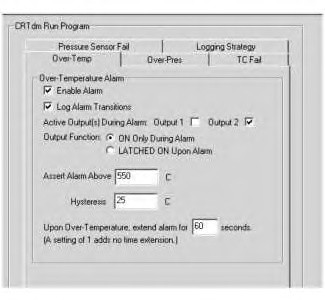
The Diagnostic Module constantly monitors exhaust back pressure and exhaust temperature in order to alert if a problem is noted. If a problem is detected with a sensor, an alarm can be set to alert you to correct the indicated problem. To set an alarm, the Diagnostic Module must contain a valid run program. Run programs are created by checking boxes or entering values for the various parameters. If a “Run Program” is not valid, the program will not upload to the Diagnostic Module. The various functions can be accessed by clicking the “Over-Temp”, “Over-Pres”, “TC Fail”, “Pressure Sensor Fail” and “Logging Strategy” tabs in the Diagnostic Module Run Program area. Refer to Illustration 45.
Note: Only the values listed on Table 4 constitute a valid run program for Caterpillar applications.
Refer to Table 4 for the correct settings to be used for Caterpillar engine applications.
Alarms and Shared Functions
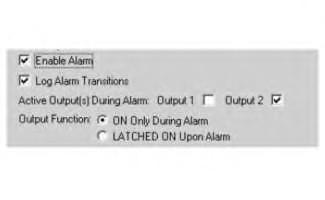
All of the Diagnostic Module alarms are equipped with two physical active alarm outputs for use with the remote display monitor. The operation of these two alarm outputs is controlled by checking one, none, or both Output boxes. The following functions are common to all the alarms. The two physical alarm outputs for the remote display monitor are:
Output 1 = Red Output 1 (or alarm 1): is a “open collector” transistor output with a 100 ohm series limiting resistor. Typically Output 1 is used for “High Level” alarms like “Over Pressure” and possibly “Over Temperature” depending on the installed location of the Diagnostic Module.
Output 2 = Yellow Output 2 (or alarm 2): is a relay output. The “normally closed” contacts of this relay add a level of “fail-safe” integrity to the system in the event of a system power failure. The relay will short to ground upon alarm condition or in the event of a power failure of the Diagnostic Module. Output 2 is typically used to alert when a pressure or temperature sensor is malfunctioning, or an “Over Pressure Warning”.
The Alarm Functions are accessible from the tabs within the Diagnostic Module Run Program section of the communications screen. Many settings are common to all of the different alarm types. Common settings include:
- Enable Alarm Checkbox: When the “Enable Alarm” box is checked, the Diagnostic Module will watch for this alarm. When the alarm is enabled various settings become available for User specification (check boxes, text boxes for thresholds, and so forth).
- Log Alarm Transitions: When this box is checked, the Diagnostic Module will record when an alarm cycles on/off, and the back pressure and temperature when the alarm cycles. Alarm transitions are logged to memory during operation and can be viewed later in “Failure Report” by using the “Create All Reports” button.
- Active Outputs During Alarm: This controls which alarm will be enabled when an alarm is realized. To enable a physical alarm output, select Output 1, Output 2, or both check boxes.
- Output Function: The alarm output function can be configured to remain “ON Only During Alarm” or can be “LATCHED ON Upon Alarm”. When Latched On, the alarm is on until the alarm reset button on the front of the Diagnostic Module is pressed.
- Alarm Time Extension: When the “ON Only During Alarm” box is checked, a triggered alarm can be extended after the alarm cycles off.
Logging Strategy
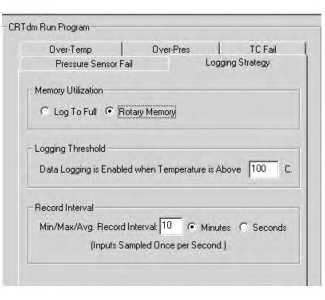
The Logging Strategy determines memory usage method, when a logging session takes starts/stops and the time intervals for saving data to memory. See Illustration 47 for recommended settings.
Memory Utilization: Select “Rotary Memory” (recommended) or “Log to Full”. “Rotary Memory” will continue to log when the memory fills, overwriting older data on a first in, first out basis. The “Log to Full” selection will fill memory until the memory is full and can no longer accept data. With Full memory, the Diagnostic Module still continues to operate and run the program checking for enabled alarms.
Logging Threshold: The temperature entered in this text box determines when data is stored to memory. When powered-up, the Diagnostic Module monitors the pressure and temperature sensors every second. However, only when the “Logging Threshold” temperature is exceeded is data stored to Diagnostic Module local memory. The assumption is that below the entered temperature the vehicle is not operating and therefore no data is required. A fixed 5C hysteresis is built into this threshold.
Record Interval: A Minimum, Maximum, and Average value for each parameter will be calculated and stored every “Record Interval”. Enter the number of minutes or seconds over which you wish to average the 1 per second reading in the “Min/Max/Avg. Record Interval” box. Absolute data and time will be maintained with all sample data. Typical time intervals are 10 to 15 minutes. Selecting 10 minutes (recommended) will provide approximately 270 days of data upon the engine running 8 hours per day, 5 days per week.
Over Temperature Alarms

Single Over-Temp Alarm: Enter a temperature in degrees Celsius, at which point the alarm should turn ON. Also enter a value for a Hysteresis, below which the alarm must fall in order to change to a nonalarm status. The Alarm state will remain ON until the temperature falls below the Assert Alarm Above value less the Hysteresis value. For example, in Illustration 48 the alarm would come on at 650C and turn off at 630C. The Alarm Output 1 would remain active only during the alarm and would shut off 60 seconds after the temp falls below 630C.

Dual Over-Temp Alarms: Generation 3 Diagnostic Module can record two temperature inputs and both can alarm if a certain temperature is exceeded. Illustration 49 shows the “Dual Over-Temp Alarm” screen. The alarms are configured independently of each other. Both alarms are programmed like the step above.
Over Pressure Alarms
|
|
| NOTICE |
|---|
| Please consult specific Caterpillar service manuals for the engine back pressure specifications. The settings below may differ between engine models and ratings. When installing the Caterpillar Passive Diesel Particulate Filter on other manufactures equipment, please ensure that the engine manufactures recommendation for back pressure is followed. Failure to observe the manufacturers back pressure specifications may cause non-warrantable failures. Never exceed the factory engine back pressure recommendations. |

Over-Pressure Warning: The Diagnostic Module has two back pressure alarms. The low-level alarm, or “Over-Pressure Warning”, is designed to warn the operator that the DPF filter needs cleaning. The “Over-Pressure Warning” usually triggers Output 2, and the Yellow LED on the Remote Display.
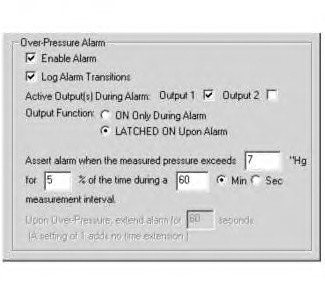
Over-Pressure Alarm: This high-level alarm is used to alert the operator that serious engine damage can occur if the vehicle continues to operate in this condition. The “Over-Pressure Alarm” usually triggers Output 1, and illuminates the Red LED on the Remote Display.
Thermocouple Sensor Failure Alarms
There are two alarm methods to detect a failed thermocouple. Both alarms will drive the same Alarm Output. These alarms will watch both thermocouples when in Dual TC mode.
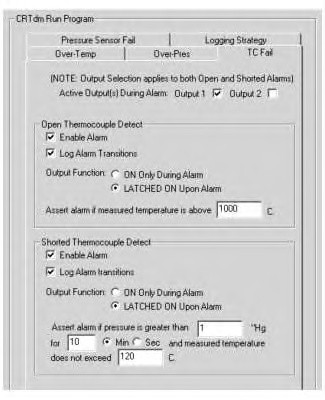
Open Thermocouple Detect: Enables the selected alarm outputs if the temperature exceeds a user-specified value which typically indicates the thermocouple is open. The maximum value a Diagnostic Module sensed thermocouple can report is approximately 1000C. Recommended settings are shown in Illustration 52.
Shorted Thermocouple Detect: Enables the selected alarm output if a user-specified pressure is reached for a specific time. This alarm indicates the vehicle is operating, but a reasonable operating temperature is not being detected, which could indicate a shorted thermocouple. Refer to Illustration 52.
Pressure Sensor Failure Alarms
There are also two alarm methods employed to detect a failed pressure sensor.
No Change Alarm: The first method, “No Change Alarm”, enables the selected alarms if a user-specified exhaust temperature is reached for a specific time. This alarm indicates the vehicle is operating and the operating pressure remains relatively static within the parameters specified. This situation would be indicative of a non-responding pressure transducer (or associated pressure source connection failure).
Enter appropriate values for operating time and temperature and a minimum pressure reading that should be realized.
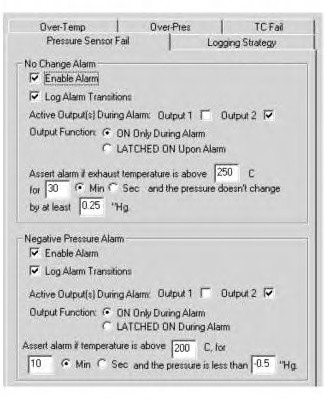
Negative Pressure Alarm: The second method, “Negative Pressure Alarm”, enables the selected alarms if the temperature exceeds a user-specified value for a specified time. This alarm indicates the vehicle is operating and a reasonable operational pressure is not obtained. Thus indicating the vehicle is operating but the pressure sensor is not functioning correctly. Refer to Illustration 53.
When configured, the alarm program should first be saved by pressing the File, “Save As” button on the top tool bar. After “Save As” is pressed, the PC will ask for a file name. Type a name into the box and press “Save”.
The new program may be uploaded to the Diagnostic Module by clicking the “Upload Program to Diagnostic Module” button. This button is located on the Communications side (left) of the screen.
Note: Be sure to download and save any data from the Diagnostic Module before uploading a new program. Uploading a new program will erase any stored data in the Diagnostic Module.
Manage Passwords
Software versions 1.44 and later can password protect certain critical parameters from being changed unless a password is entered. Clear Memory, Upload Program to Diagnostic Module, Set Date/Time, Flash Program Diagnostic Module and Calibrate Pressure Sensor are all protected when you enable the password protection feature
If the software version is earlier than 1.44, you may update free of charge. Please contact the DSN or the Technical Communicator at the nearest Caterpillar Dealership for the latest version of the software.
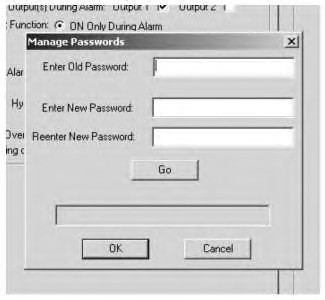
All Diagnostic Modules are shipped with the password protection turned off. Password protection should be enabled. A single password can protect multiple Diagnostic Modules. Click on the “Tools” drop-down menu, click “Manage Passwords”, and follow the directions below.
- First Enabling Password Protection:
- Leave the “Enter Old Password” field blank.
- Enter the password in the “Enter New Password” field.
- Re-enter your password into the “Reenter New Password” field.
- Click “Go”.
- Click “OK” to close the box.
- Changing a password:
- Enter the current password in the “Enter Old Password” field.
- Enter a new password in the “Enter New Password” field.
- Re-enter the new password in the “Reenter New Password” field.
- Click “Go”.
- Click “OK” to close the box.
Options/Settings
The Options/Settings screen allows you to configure the COM port settings, select the speed at which the Diagnostic Module communicates with your PC, select the default mode for the Diagnostic Module Software to operate in, decide if data stored in the Diagnostic Module memory should be erased when a new version of the Diagnostic Module firmware is uploaded and decide if you would like the software to download the Alarm program automatically when you connect to the Diagnostic Module. Details about each function follow below.
- Configuring the Communication Port settings
- Communication speed
- Diagnostic Module Operation Mode
- Automatic download of the alarm program is possible during connection to Diagnostic Module
Note: Data stored in the Diagnostic Module memory should be erased when a new version of the Diagnostic Module firmware is uploaded.
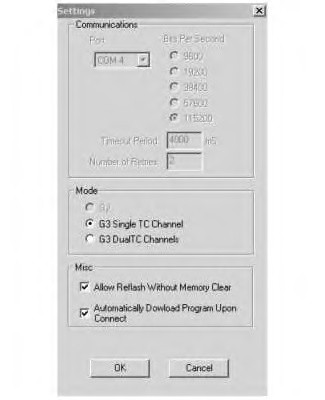
To change the Communications settings, disconnect from the Diagnostic Module (leaving the cable in place between the Diagnostic Module and your PC). Click “Options” followed by “Settings”, and a dialog box will open. Refer to Illustration 55.
Com Port Setting: “Com1” is the default as the communications port between the Diagnostic Module and the PC, however the PC may be configured differently. If you cannot communicate with the Diagnostic Module, try changing the COM port settings.
Bits per Second: On some PC’s with slower processor speeds, slowing the communications speed between the Diagnostic Module and your PC may be necessary. This issue will be noted by a Communications Error while downloading data. If a Communications Error occurs, slow the communications speed until the error stops.
Mode: The default mode the software tries to operate in when connecting to a Diagnostic Module. The software automatically switches between modes when the software recognizes the need. If mostly or all G2 product is used, the G2 option should be checked. If working with both G2 and G3 with single thermocouples, check the G3 Single TC Channel.
If connection to a G3 Dual Channel in G3 Single TC Channel mode, an alert will open prompting a mode change. Also, if connection to a G3 Single TC Channel in G3 Dual Channel mode, an alert will open prompting a mode change. The software will automatically switch between G2 and G3 modes without an alert.
Allow Reflash without memory Clear: Typically, when upgrading the Diagnostic Module firmware the recorded data will be erased. However, the option to save the data during a reflash operation is available by checking the Allow “Reflash Without Memory Clear” box. A prompt will be displayed during the reflash operation allowing the memory to be saved in the Diagnostic Module.
Download Program Upon Connect: This feature downloads the program from the Diagnostic Module allowing the Check this box to see the alarm program values every time connected.